This tutorial will walk you through the steps to adding a Raw Product.
Instructions on how to set up Raw Products
TABLE OF CONTENTS
Throughout this tutorial, keep in mind that you cannot add any identical Display Names or Codes across anything in Inventory. No two may be alike. It will give you an error if you try to enter one that is identical to an existing one.
Raw Products Categories Group
On the main menu, go to the Inventory module. Select Raw Products in the drop down. Then to set organization for a Raw Product, you will first need to create a Category Group, then a Category, then a Line.
To create the Raw Product Category Group, click the + button and add a Display Name and a Code. The SKU will automatically generate with the codes you entered. Choose whether you want to hide or show this part of the SKU by clicking the box named Hide SKU. Finish by clicking Create.
Raw Product Categories
Next, go to Raw Product Categories in the menu across the top and click +. Select the correct Raw Product Category Group from the dropdown. Add your Product Category Display Name and Code. See how the SKU automatically adds up and then choose if you want to show or hide the SKU. Click Create.
Raw Product Line
Next, add a Raw Product Line. Select the correct Category Group and then Category from the drop downs. Then enter a Display Name and Code. See how the SKU automatically adds up and then choose if you want to show or hide the SKU. Click Create.
Raw Product
Now that you have the levels of categorization entered, you can now enter your Raw Product! Choose the correct options from the dropdown and fill out the Display Name and Code. Add a description of this raw product. You’ll now see your entire SKU here, unless you chose to hide one of them. Choose whether you wish to hide SKU. If this can be a serialized item, make sure to click the box, otherwise keep it empty. Click Create once you’re done.
Great job, you added a Raw Product!! The next step is to complete the settings for this Raw Product. Click on the Settings icon on the Raw Product you just entered.
General
You will need to fill out the information in each of the sections. Let’s start in General settings. Select a Unit of Measure. Scroll on down to Sizes and fill out the Width, Length, Height, and Weight, leaving any sections blank that do not apply. Click Save.
Purchasing
Next, go to the Purchasing section. Notice the blue button that will allow you to make a New Purchase Order with this raw product!
Select the option for how you source this product. Choose your default vendor from the dropdown. (See how to add new Vendors.) If you purchase in a different unit than what you selected in General, make sure you Toggle that on. This will let you choose your default purchase unit of measure, as well as enter the conversion rates.
Costs
Next go to Costs. You can enter your Cost, % of margin, and it will calculate your Base Price. Choose the box if you want to Update Costs from Purchases or if you want a Fixed Base Price. Enter the material lead time (how long it takes to arrive from the Vendor). Save.
Pricing
This will allow you to set different prices for different locations, warehouses, states you operate in, etc. Create a new Price Level, set the price and Unit of Measure and Margin and Formula. Then click Save Changes.
Count
Next go to the Count section. Select your Warehouse. (See how to add Warehouses here.) Fill out each of the fields as needed. See this diagram below for a more complete understanding of what each field is calculating.
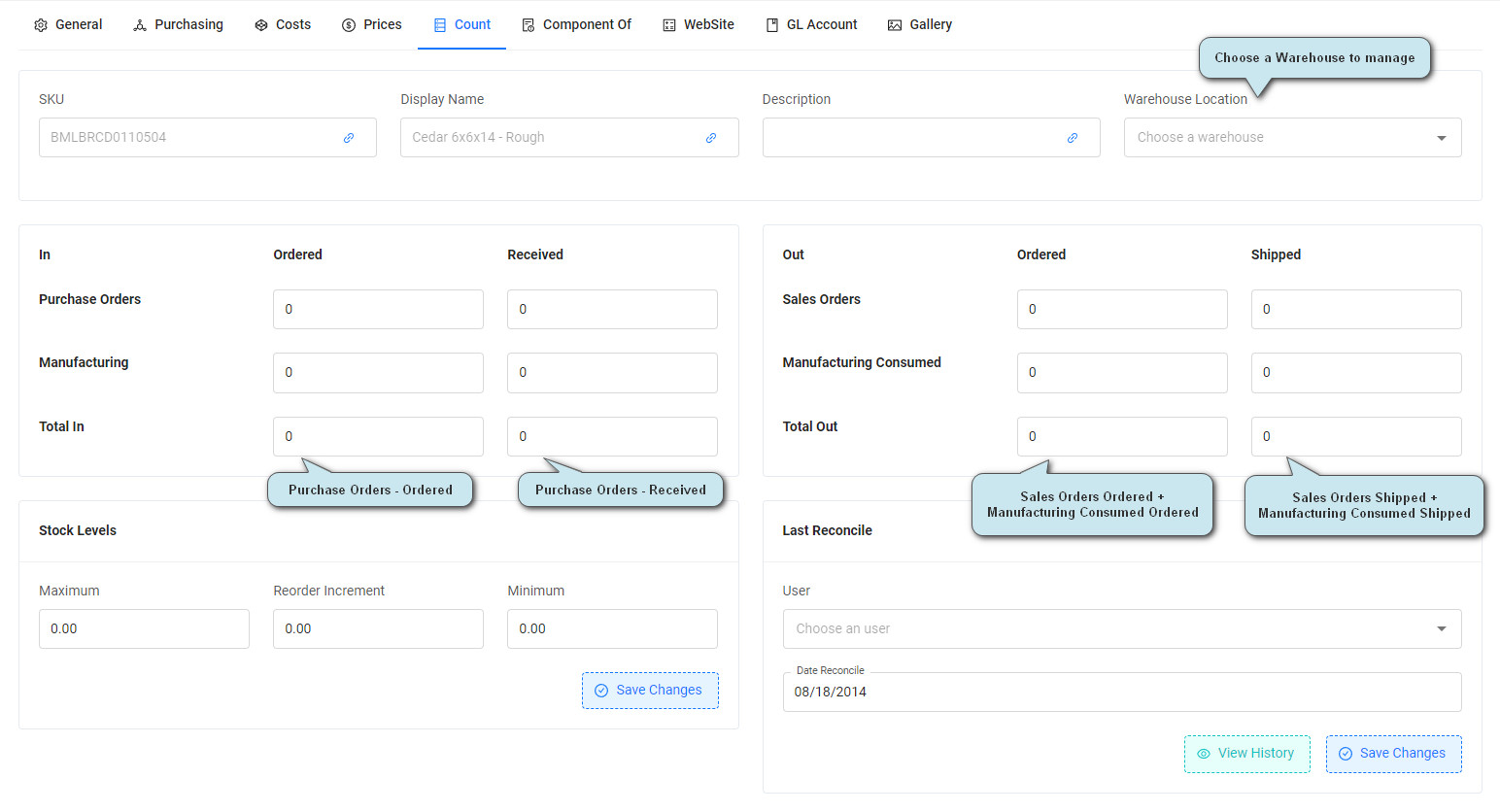
The Stock Levels section allows you to set the Maximum and Minimum quantities to keep stocked, as well as the Reorder Increment which will notify you on the Purchasing Dashboard when it is time to reorder this item when the levels get too low. Make sure to Save.
The right side of the screen will allow you to search for the last time this item was reconciled in an inventory adjustment. Filter by User and Date to get the result you are looking for.
The Summary section shows you the summary of how much of this item you have on hand, have ordered, have available, and therefore, what quantity to order. Please see the diagram for more detail about how it is calculating each field. Fill out the Sell As section as well and select the correct boxes along the bottom. UPC stands for Universal Product Code. This part is not required, but is useful if you sell this Raw Product. 
Make sure to Save Changes when you edit on this Count Screen.
Component Of
Next proceed to the Component Of screen. This screen will show you everywhere this Raw Product has been used as a component.
Website
{feature coming soon}
GL Accounts
The next tab over is GL Accounts. Fill out each of the fields with the proper GL accounts for accounting purposes to be linked with your Accounting Integrations.
See more about Accounting Software Integration.
Gallery
The Gallery screen allows you to place informative images for your Raw Products. These would be used on the Purchasing Dashboard when populated for reordering or just as a way to have a visual for your raw product inventory.
Was this article helpful?
That’s Great!
Thank you for your feedback
Sorry! We couldn't be helpful
Thank you for your feedback
Feedback sent
We appreciate your effort and will try to fix the article